


Gate Web3 Web Version:
https://www.gate.com/web3
Gate Web3 Wallet Extension Version:
https://chrome.google.com/webstore/detail/gate-wallet/cpmkedoipcpimgecpmgpldfpohjplkpp
Gate Web3 Wallet App Version:
https://www.gate.com/mobileapp
1. How to Install the Extension?
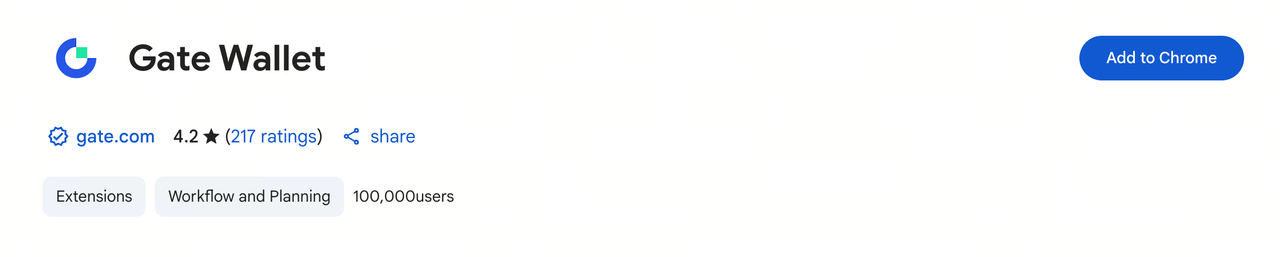
Click this link to go to the Chrome Web Store page for installing the Gate Web3 Wallet extension. As shown below, click the "Add to Chrome" button on the right side of the page.
2. How to Deposit into the Gate Web3 Wallet Extension?
Step 1: Create, Import, or Restore Cloud Backup for Gate Web3 Wallet
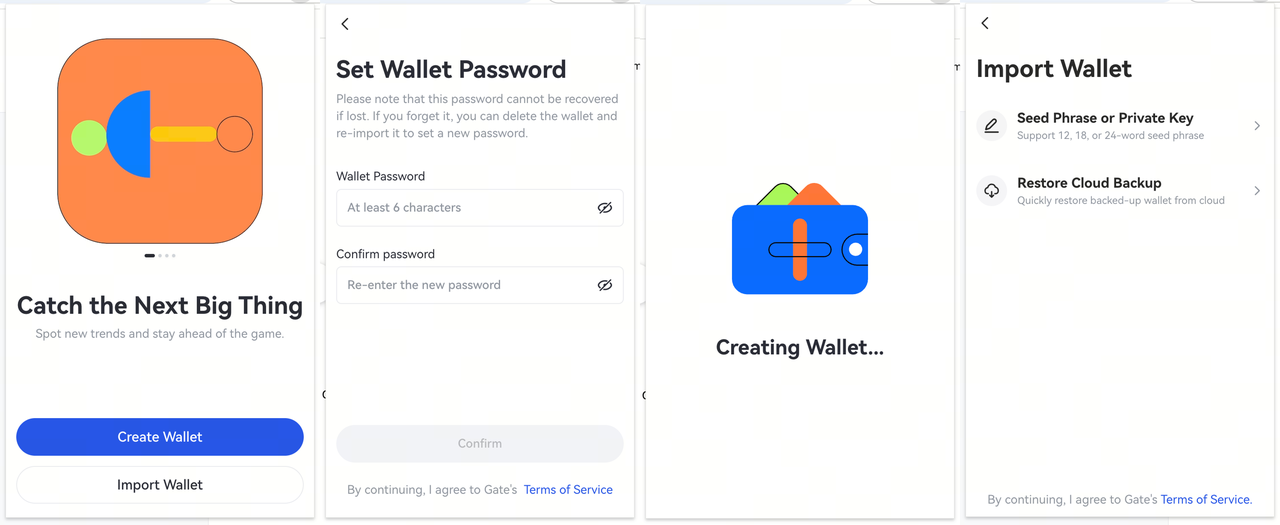
Open the Gate Web3 Wallet extension and select "Create Wallet." Enter your password to create a new wallet. If you already have a wallet, select "Import Wallet" and enter your mnemonic phrase or private key to import it. If you previously backed up your wallet to the cloud via the Gate App, click [Restore Cloud Backup] and enter your password to recover your wallet.
Note: Please make sure to keep your password and mnemonic phrase safe. We do not store your password or mnemonic phrase, and if they are lost, your assets cannot be recovered.
Step 2: Go to the Extension Homepage and Click [Receive]
Click the "Receive" button in the extension interface, select the token and network you wish to receive, copy the receiving address, and paste it into the page where you are initiating the transfer.
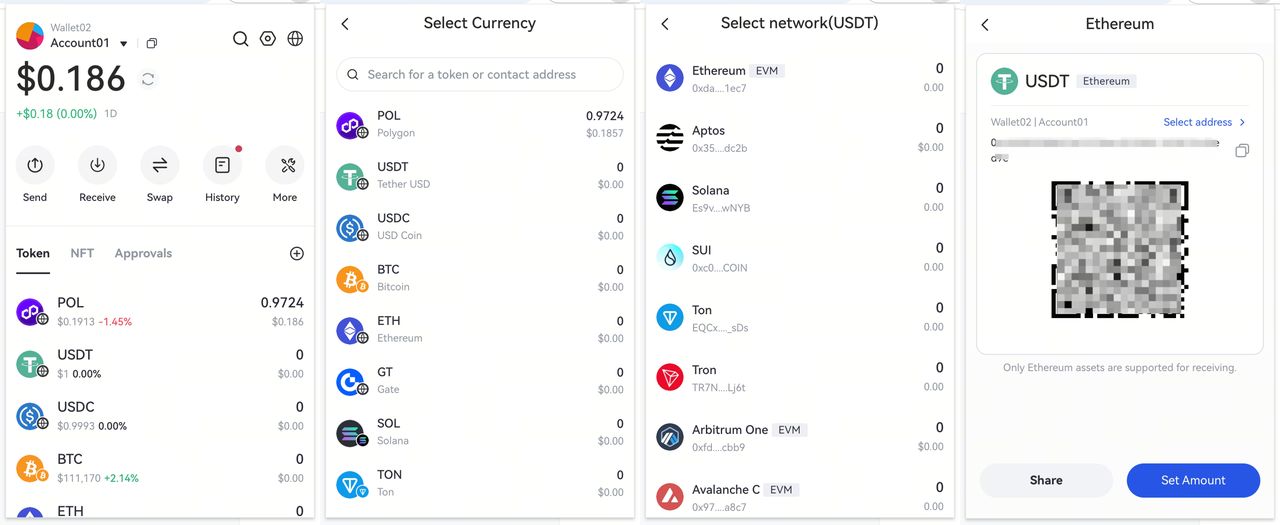
Once the operation is complete, you can view the transaction status in [History] on the extension homepage.
3. How to Send Tokens Using the Gate Web3 Wallet Extension?
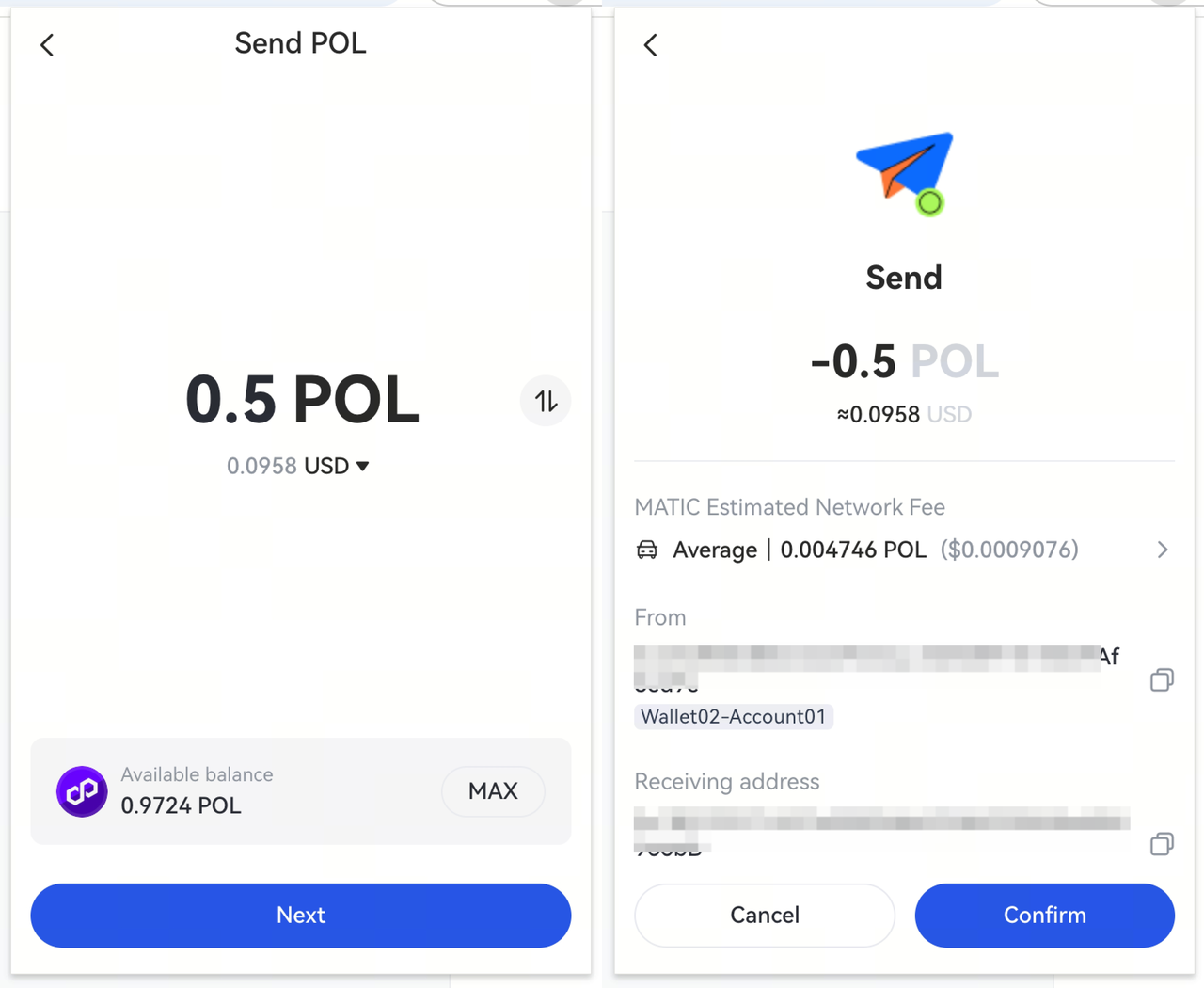
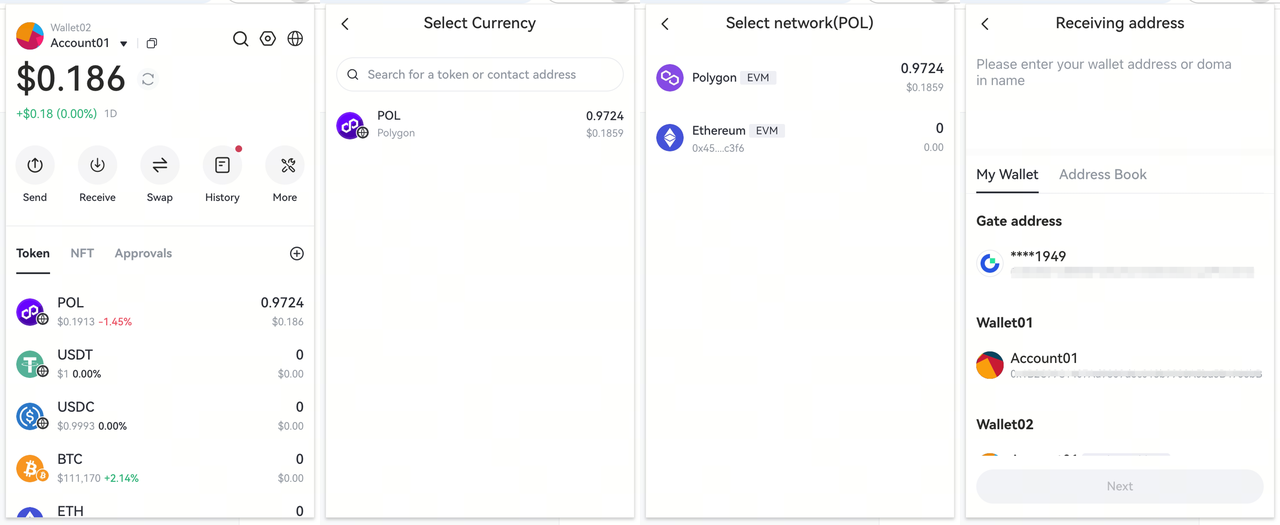
Click the "Send" button in the extension interface, select the token to transfer, and enter the recipient's address. Enter the amount of tokens to send, and after confirming the amount, wallet address, and gas fee are correct, click [Confirm] to proceed.
- Before initiating a transfer, please make sure you have enough network tokens to cover the gas fee.
-
Click [Send] on the wallet extension homepage, then select the token, network, and recipient address for your transfer.
-
On the send page, enter the amount of tokens you wish to send and click [Next]. After reviewing the amount, address, and gas fee, click [Confirm].
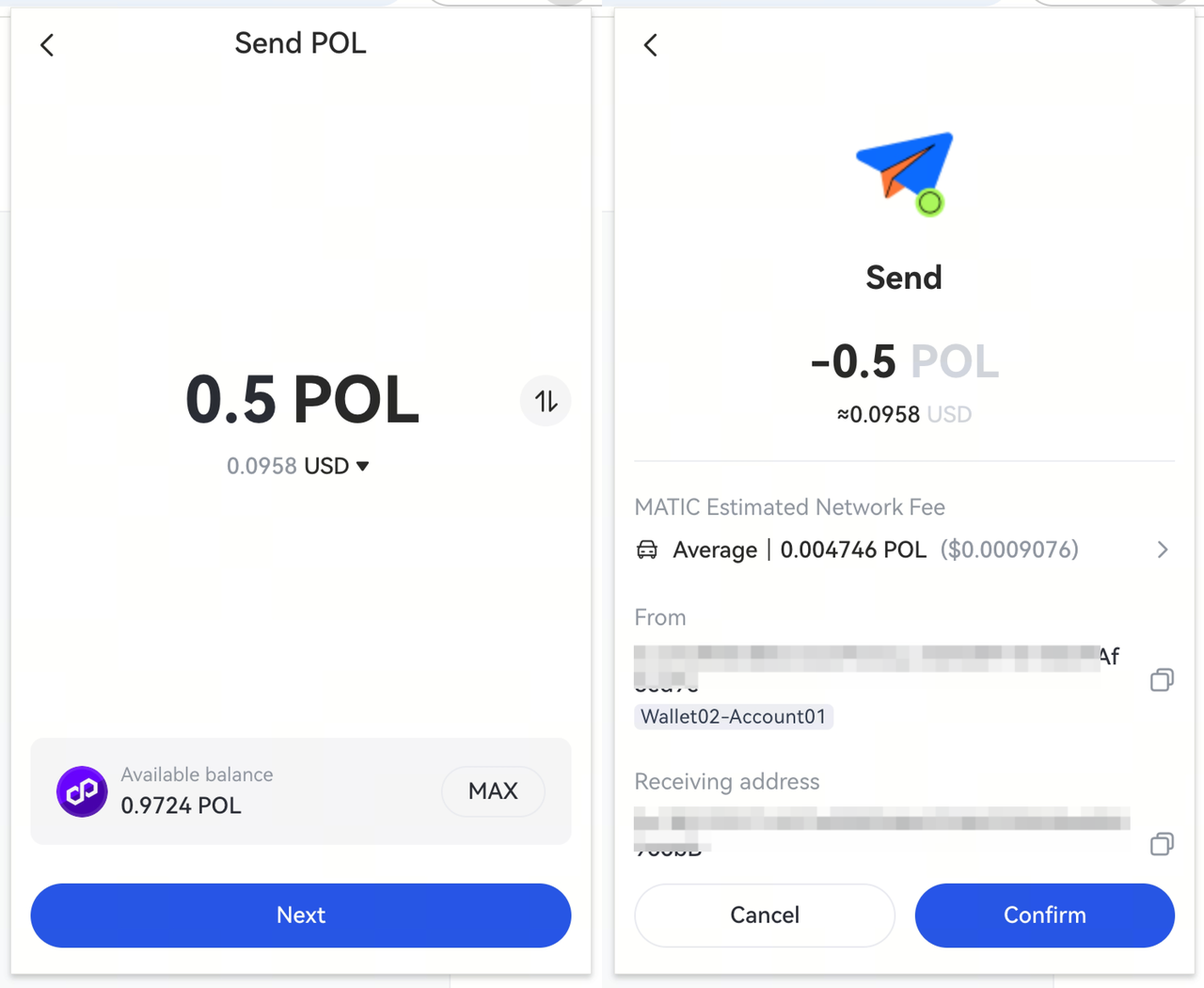
If you have sufficient token balance and enter the correct password, your transaction will move to the pending confirmation status.
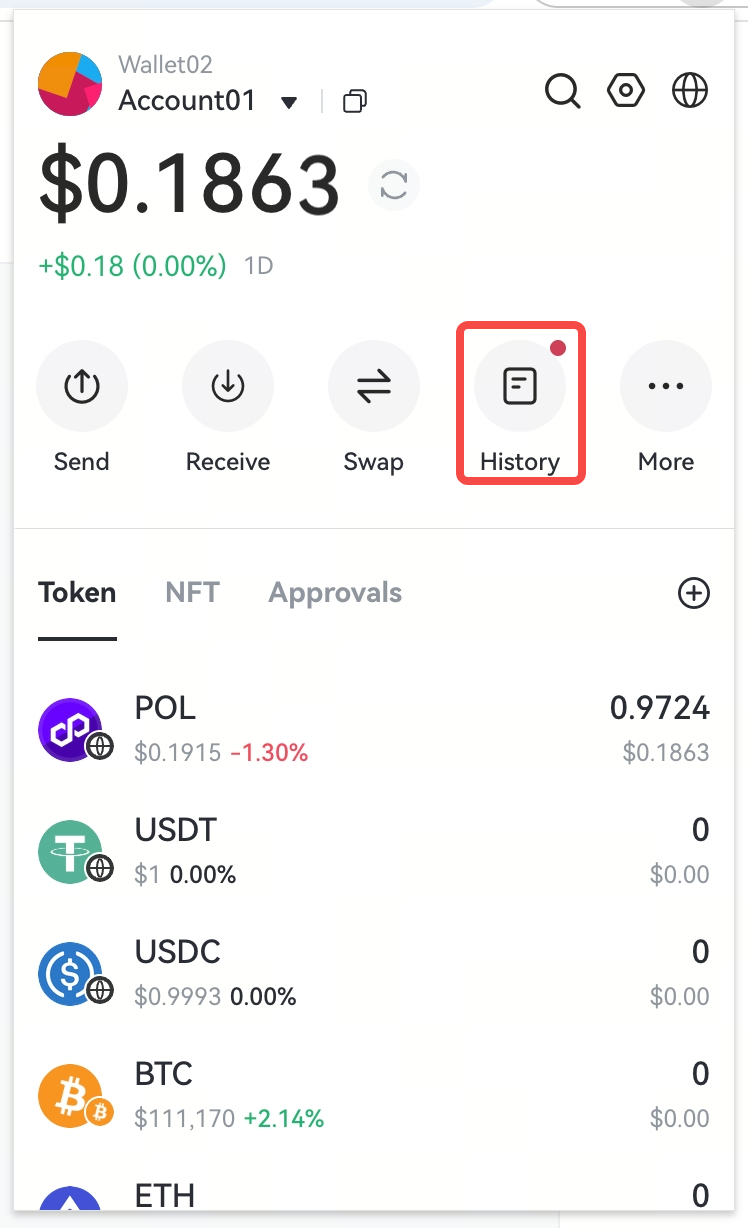
Once the operation is complete, you can view the transaction status in [History] on the extension homepage.
Disclaimer
The content provided herein is for reference and educational purposes only and does not constitute any financial, investment, trading, or legal advice, nor does it constitute an offer or solicitation to buy or sell any digital assets. Gate makes no express or implied representations or warranties regarding the accuracy, completeness, or timeliness of the information contained herein. Product features, interfaces, rules, and fee structures may be updated or adjusted at any time. Please refer to the latest announcements and the actual information displayed on the Gate platform for the most accurate details.Digital asset investments involve significant risk, and prices may fluctuate substantially. You may lose the entire amount of your investment. Please make decisions cautiously based on your own financial situation and risk tolerance after fully understanding the associated risks. If necessary, you are advised to consult an independent professional financial or legal advisor.
For more information about potential risks, please refer to Gate's Risk Disclosure and User Agreement.
